1. Pre-Requisites
1.1. Neferdata Account
Create an account by logging into your dedicated instance using your Google or Microsoft account.
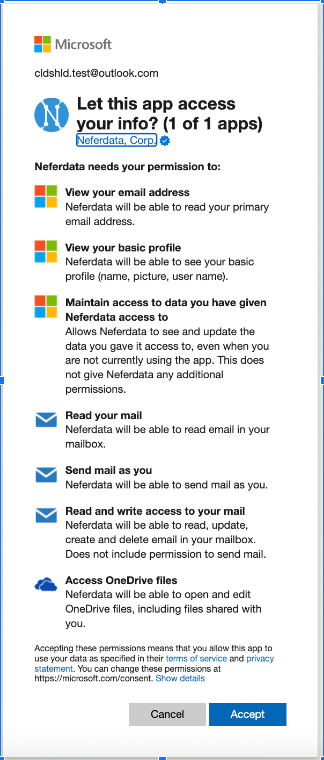
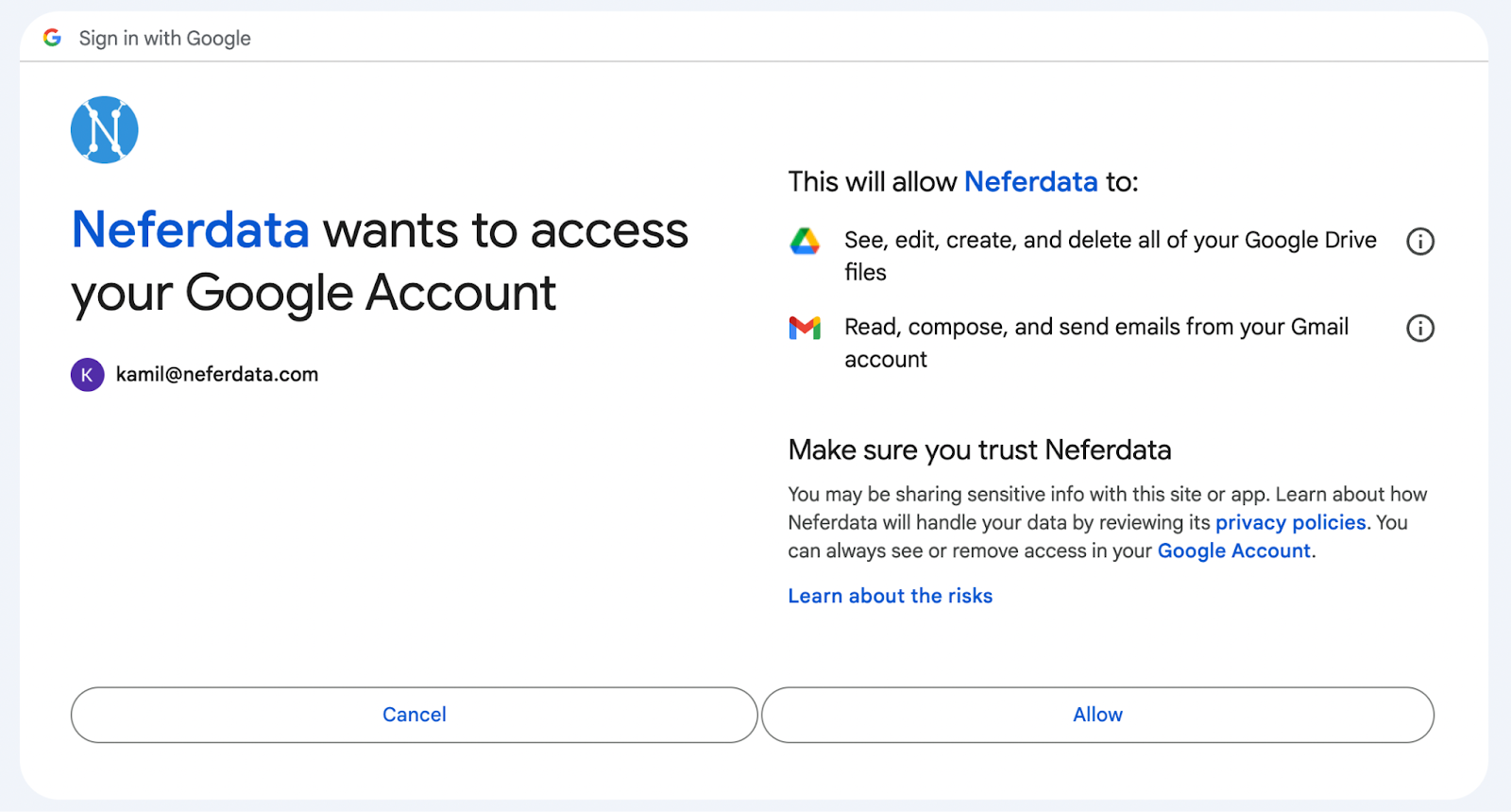
Please note: The application requires access to your Google/Microsoft resources to automate your workflows, therefore it is required to consent on the below login screen:
1.2. Microsoft / Google Resources
If you plan to leverage Microsoft or Google online resources as a source of documents for your Knowledge Search solution, for example, if you want all documents uploaded to a folder to be used for search or you want to be able to search through all emails sent to an inbox, you will need to create those resources before you start building the search solution.
Knowledge Search Solution
You can set up a solution that will prepare your documents for knowledge search with a few quick steps:
2.1. Step 1: Define Object & Columns
2.1.1. Example Video
2.1.2. Explanations
As the first step, you need to create an Object that will be used as a store for all the documents you want to perform the knowledge search across. When creating the search, provide a definition that will help AI understand what content is expected in the documents.
It is recommended to create Columns for the Object. The Columns act as filters for the Knowledge Search Solution. The AI will automatically extract each of the columns for each newly uploaded document. These columns are then utilized during searches to pinpoint documents that are most relevant to the question. Examples of search filters:
- Product Category: If your organization offers multiple product lines or categories, and users from specific channels are primarily interested in a particular category, defining product categories helps the AI accurately categorize each document and make its responses more relevant.
- Document Type: For organizations dealing with various types of documents such as user guides, technical specifications, or warranty information, specifying document types enables the AI to classify each document accordingly.
2.2. Step 2: Add Documents to Search with an Automation
2.2.1. Example Video
2.2.2. Explanations
An Automation can help to automatically add new documents to the Knowledge Search Solution and prepare them for data retrieval.
As a first step, you will need to define the source of the documents. Neferdata supports multiple data sources. For example, you can create an automation that will monitor an inbox and index all the emails that are sent to it. Or you can connect to an online folder and automatically pull in any document that is uploaded there.
In the Data Targets menu, select Search Index and configure it to use the Object you created in Step 1: Define Object & Columns.
Configure other base configuration settings of the Automation such as Automation Name, Object Name, Column Names, and Frequency (sec).
For more detailed information about Automations refer to Neferdata | Create Automation in No-Code Platform guides.
2.3. Step 3: Ready to Search
2.3.1. Example Videos
2.3.2. Explanations
You can check which documents were processed and are available for search by reviewing:
- Created Objects → Your Object → Active Instances
- Created Automations → Your Automation → Automation Runs
Users can search for answers against the documents using the Search Index → Your Object screen.
You can expose a search screen that uses your indexed documents in any system by leveraging Neferdata APIs. Detailed documentation of leveraging Search API is available here.