1. Initial Setup
1.1. Postman Collection
Download and import the Postman Collection that includes all the API calls needed for the Implementation steps outlined in this document.
Postman Collection: Link
1.2. Authorization
- Obtain a JWT to sign all API requests with a bearer token:
- Navigate to Authorize in your browser and authenticate via Google login.
- Request a new JWT via Token and save the returned token in Environment Variables.
1.3. Environment Variables
In your Postman application create a new Environment for the collection imported in step 1.1. Postman Collection:
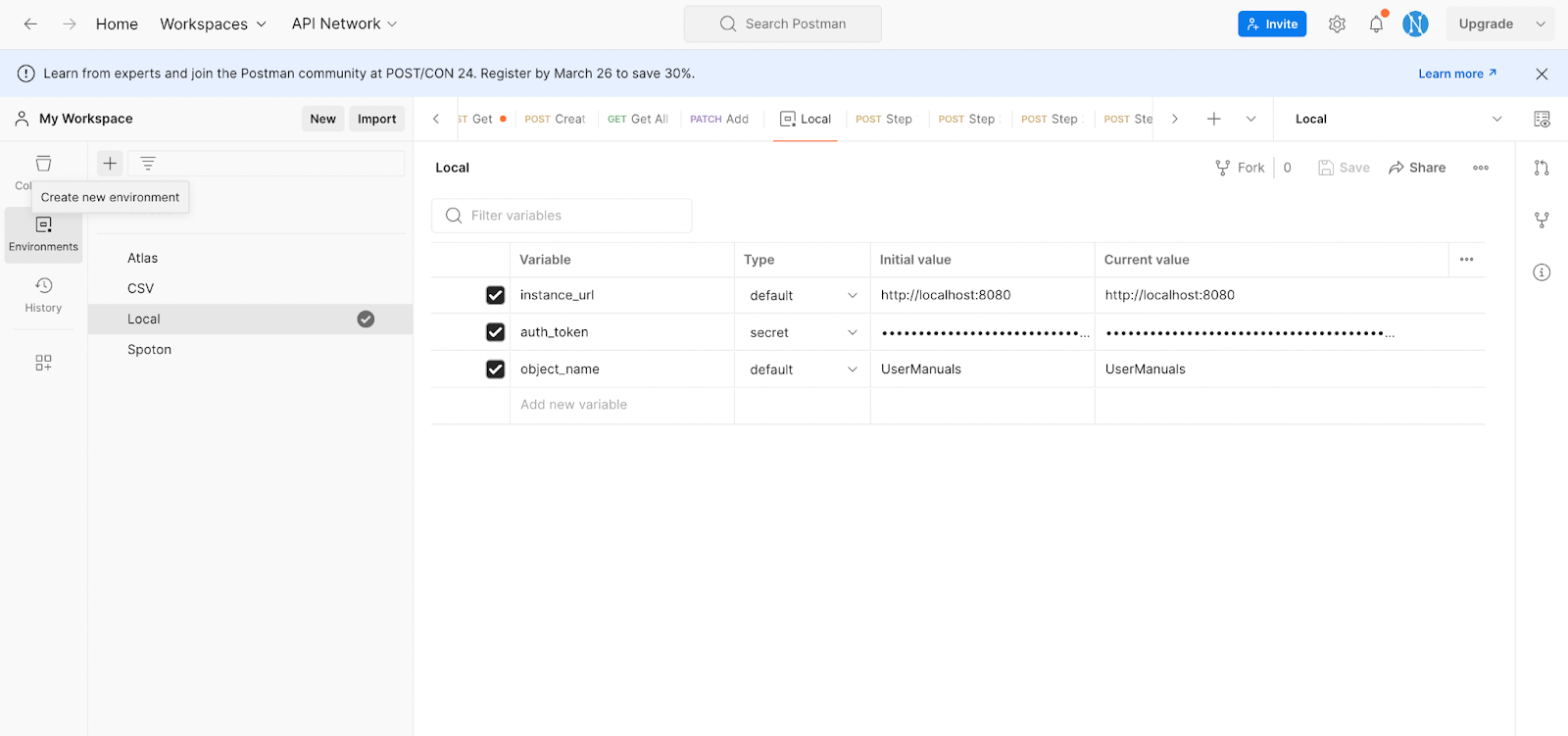
Create a new Environment in Postman and set the following variables:
-
instance_url:
https://{company-domain}-api.neferdata.com -
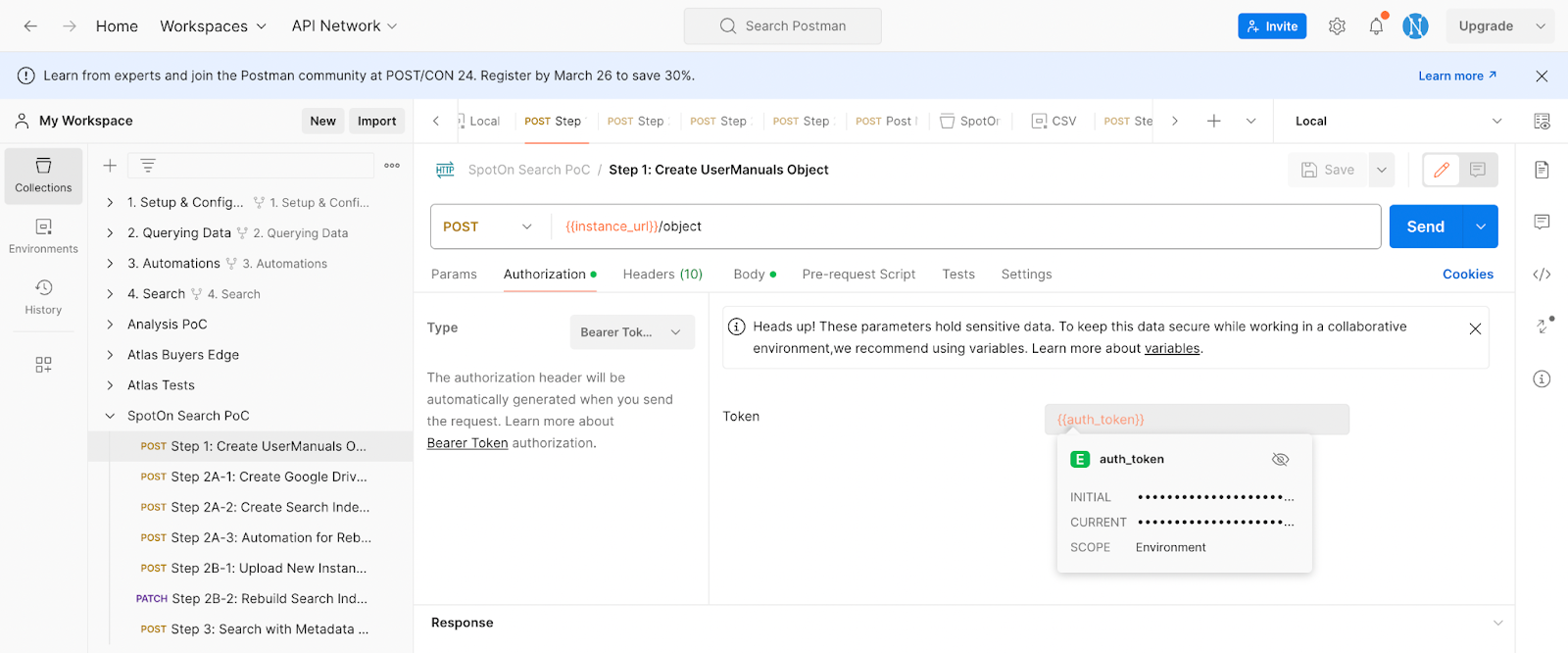
auth_token: this should be the token obtained in step 1.2. Authorization. The auth_token should be used to sign API calls with bearer authorization:
-
object_name: Name the object for document uploads (e.g.,
UserManuals)
If automating document uploads to the Search Index, also set:
-
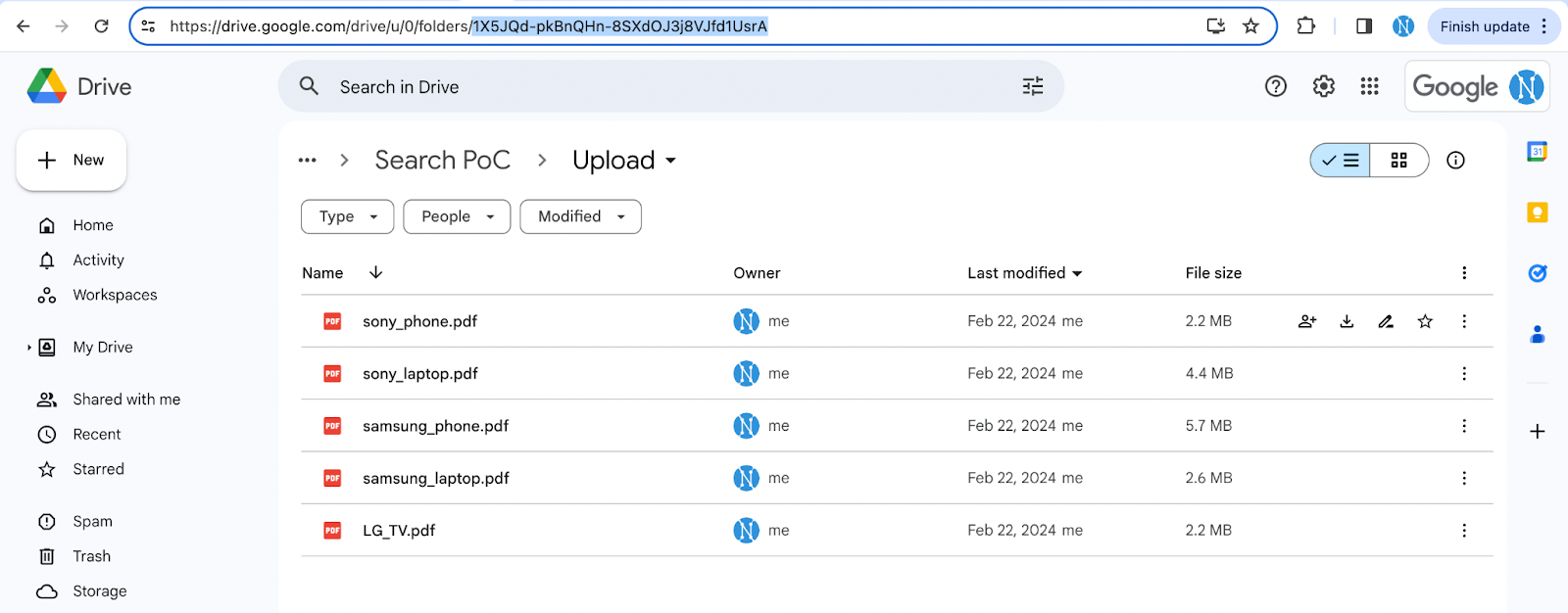
folder_id: the ID of the folder that will be used as DataSource for the Automation. The Automation will upload every document from the folder into the Search Index. The folder ID can be found in the URL:
-
user_email: Email of a user authorized via Authorize
2. Implementation
2.1. Step 1: Create Object
Execute Step 1: Create UserManuals Object from the Postman Collection.
API endpoint:
[POST] {{instance_url}}/object
Sample payload:
{
    "name": "{{object_name}}",
    "definition": "Contains set of user manuals for different products from different manufacturers.",
    "columns": [
        {
            "name": "product_name",
            "definition": "Name of the product explained in the manual. If a manual is for multiple products or variants, comma-separated list of the products and variants covered by the manual.",
            "type": "String"
        },
        {
            "name": "product_category",
            "definition": "Description of the product category to which the product or products covered by the manual belong.",
            "type": "String"
        },
        {
            "name": "product_manufacturer",
            "definition": "Name of the company that produces the product or prepared the manual.",
            "type": "String"
        }
    ]
}
Expected response:
200 OK
2.2. Step 2: Upload Documents & Build Search Index
Neferdata allows uploading documents either via Automation or APIs. Both options are outlined below.
2.2.1. Option A: Automation
2.2.1.1. Step 2A-1: Create a Data Source
Execute Step 2A-1: Create Google Drive Data Source from the Postman Collection.
API endpoint:
[POST] {{instance_url}}/automation/resource
Sample payload:
{
    "resource_type": "google_drive",
    "configuration": "{\"folder_id\": \"{{folder_id}}\",\"user_email\": \"{{user_email}}\"}",
    "category": "DataSource",
    "created_by": "{{user_email}}"
}
Expected response:
200 OK
{id}
2.2.1.2. Step 2A-2: Create the Search Index Target
Execute Step 2A-2: Create Search Index Target from the Postman Collection.
API endpoint:
[POST] {{instance_url}}/automation/resource
Sample payload:
{
    "resource_type": "search_index",
    "configuration": "{\"object_name\": \"{{object_name}}\"}",
    "category": "DataTarget",
    "created_by": "{{user_email}}"
}
Expected response:
200 OK
{id}
2.2.1.3. Step 2A-3: Create the Automation
Execute Step 2A-3: Automation for Rebuilding Index from the Postman Collection.
API endpoint:
[POST] {{instance_url}}/automation
Sample payload:
{
    "source_id": {{data_source_id}},
    "target_id": {{search_index_id}},
    "frequency": 3600,
    "object_name": {{object_name}}
}
Expected response:
200 OK
{id}
2.2.2. Option B: APIs
2.2.2.1. Step 2B-1: Upload Documents
Execute Step 2B-2: Rebuild Search Index (via API) from the Postman Collection.
API endpoint:
[POST] {{instance_url}}/object/{{object_name}}
Sample CURL:
curl -X POST \
  -H "Content-Type: multipart/form-data" \
  -F "file=@/path/to/your/file.txt" \
  {{instance_url}}/object/{{object_name}}
Expected response:
200 OK
2.2.2.2. Step 2B-2: Rebuild the Search Index
Execute Step 2B-2: Rebuild Search Index (via API) from the Postman Collection.
API endpoint:
[PATCH] {{instance_url}}/search/{{object_name}}
Expected response:
200 OK
2.3. Step 3: Search Away
Execute Step 3: Search with Grouping Dimensions from the Postman Collection.
API endpoint:
[POST] {{instance_url}}/search/{{object_name}}
Sample payload:
{
    "prompt": "Pair my Samsung mobile phone with a Bluetooth device",
    "columns": [
        "product_category",
        "product_manufacturer"
    ]
}
Sample response:
[
    {
        "id": null,
        "object_id": 44,
        "instance_id": 156,
        "prompt": "Pair my Samsung mobile phone with a Bluetooth device",
        "response": "To pair a Samsung mobile phone with a Bluetooth device, go to the Settings screen and tap Connections → Bluetooth, then tap the switch to turn it on. The detected Bluetooth devices will be listed. Select a device to pair with. If the device to be paired is not listed, set it to enter Bluetooth pairing mode. Once you select a device, accept the Bluetooth connection request on your phone to confirm. The devices will then be connected.",
        "original": "Pairing with other Bluetooth devices\n1 On the Settings screen tap Connections → Bluetooth and tap the switch to turn it on.\nThe detected devices will be listed.\n2 Select a device to pair with.\nIf the device you want to pair with is not on the list set the device to enter Bluetooth\npairing mode. Refer to the other device's user manuals.\nYour phone is visible to other devices while the Bluetooth settings screen is open.\n\n\n3 Accept the Bluetooth connection request on your phone to confirm.\nThe devices will be connected when the other device accepts the Bluetooth\nconnection request.\nTo unpair the devices tap next to the device name to unpair and tap Unpair.",
        "confidence": 95,
        "status": "Proposed",
        "source": "OpenAI",
        "update_date": "2024-03-26"
    }
]
Response elements:
- response: AI-generated summary of the response to the prompt.
- original: Original text from the document used by the AI.
- instance_id: ID of the document where the information was found.
- confidence: 0-100 score representing AI confidence in response accuracy.